

Move the card when the deal moves
Start with an Opportunity and move it through your workspace’s stages as the work changes. The board illustration uses sample stage names.
Acquisitions Pipeline
See which offers need work, who owns each deal, and what is holding it up. Open the deal to check the seller history, comps, and next task.

Start with an Opportunity and move it through your workspace’s stages as the work changes. The board illustration uses sample stage names.
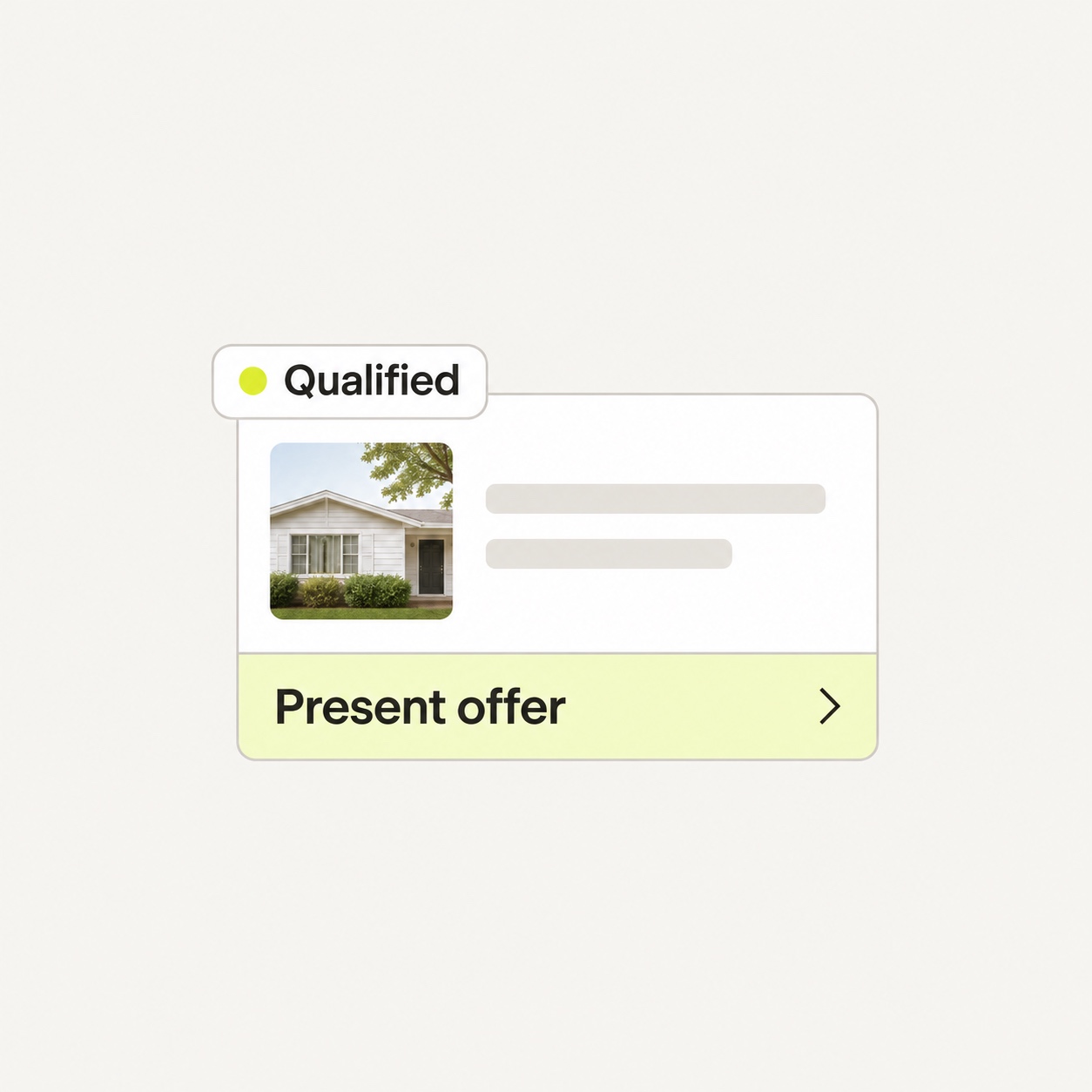
Open the property to read the seller’s motivation and condition notes. Check comparable sales, the offer draft, and the next task before you call.

If a roof quote is holding up the offer, add a blocker to the deal. Assign the closer a task to get the quote and revise the offer.
Illustrative example. Nora is ready to talk price, but the roof quote is still missing. The closer records the blocker so the team knows why the deal is waiting.

Update the rehab estimate, review the price with Nora, and set a follow-up date. Move the card as the deal reaches the next stage your team uses.

Once signatures are complete, check the agreement in Deal Files. If Effie prompts for a deal review, complete it before adding the deal to Dispositions. Pass along the comps and seller commitments.
Add it when the team has a seller opportunity to work. Early seller replies and qualification can stay in Lead Manager.
Check the completed agreement, then use the action to add the deal to Dispositions.
Add a blocker from the deal card. Put the work to clear it on the deal as an assigned task.
Open the stage your team uses for offers that went out. Review the last reply and the dated task on each deal.
Assign a different deal owner when responsibility changes. Use task assignments for one-off help.
Use Pipeline settings to configure the stages your team works through.