
Read the draft before you send it
Check the purchase price, property address, seller names, and dates. Confirm the agreement type and signer roles before requesting signatures.
Offers & E-Sign
Start from a template available in your workspace. Review the deal terms, send to the required signers, and find the completed file in Deal Files.
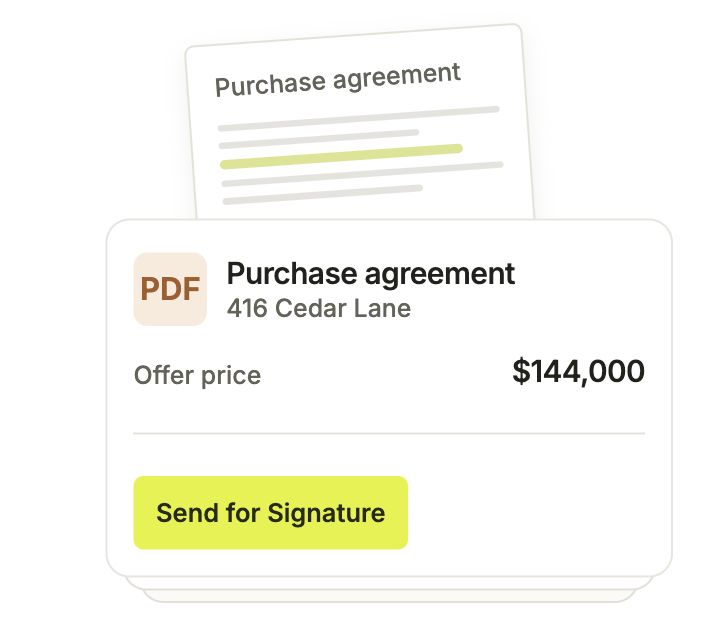
Open the deal and select a purchase agreement template available to you. Review the populated fields, including the seller, property, price, and dates.
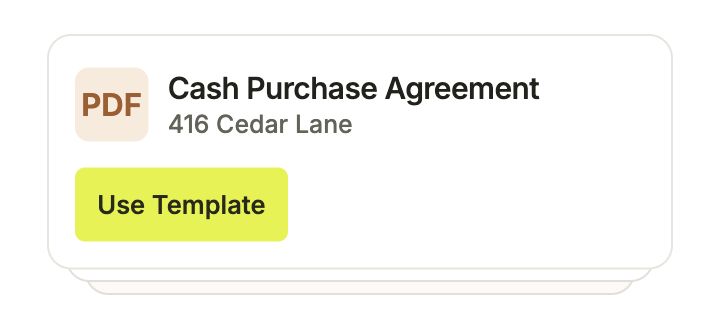
Check each signer’s address and signature fields. Send the request when the draft is ready. Each signer gets their own request to sign.

Track progress for the request in Deal Files. When all required signatures are complete, check the final signed PDF there.
Illustrative example. The seller agrees to discuss a $144,000 purchase price. Confirm the terms before you send the agreement for signature.
Check the purchase price, property address, seller names, and dates. Confirm the agreement type and signer roles before requesting signatures.

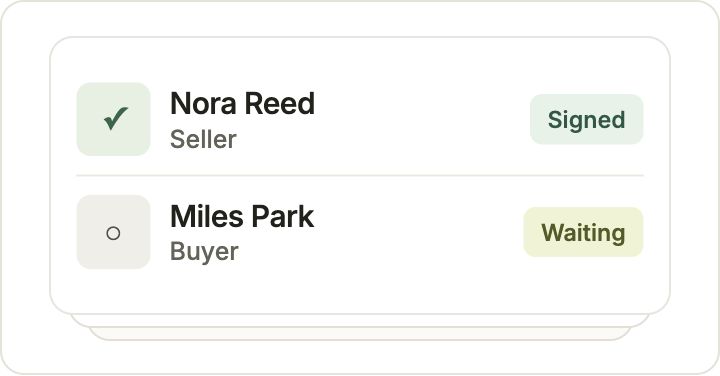
In this example the seller has signed and the buyer is pending. Check the request for completion before handing the signed file to Dispositions.
Use the document templates configured for your workspace. Confirm which agreement your deal calls for before selecting it.
Open the source document in Deal Files and check for the completed signed PDF.
Yes. Check prefilled details and correct the draft before you send the signature request.
Add each required signer to the request and check that each signature field goes to the right person.
Check who is still pending. The request is complete when all required signers have finished.
Confirm the final document. Then update the deal stage or pass the signed agreement to the teammate handling the buyer side.