
Check replies and narrow your list
Check the Inbox for replies. In Lead Manager, filter by owner, lead temperature, campaign, or appointment. Save the filters you use each morning.

Lead Manager & Inbox
Find the text that needs an answer. Open the lead to see the property, then record what you learn and give the next call an owner.

Check the Inbox for replies. In Lead Manager, filter by owner, lead temperature, campaign, or appointment. Save the filters you use each morning.
Read the text thread and available call history. Check which property the seller means, then ask about their reason for selling, the condition, and their timing.

Add the seller’s answers to the record. Assign the lead and give the next call a date and a person responsible.

Illustrative example. Nora texts back about Cedar Lane. She wants to move in two months and is waiting on a roof estimate. Her lead manager schedules a Friday callback.
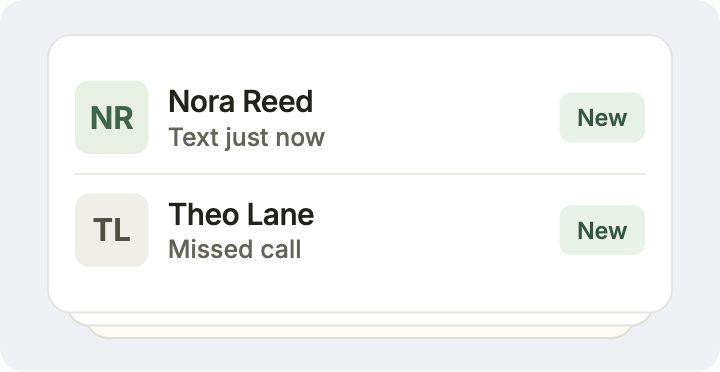
Use the callback to check the roof, the asking price, and when Nora can show the house. Record what she confirms and what is still open.

When there’s a deal to work, add the linked property to Acquisitions. The closer can open the deal and review the seller’s notes before starting the offer.
Available texts and call history depend on your connected channels. Supported replies from a connected Gmail mailbox can appear in Effie. Microsoft email is used for sending.
Use the owner filter to work your own leads or check a teammate’s queue.
Save a view with filters such as owner and lead temperature. Reopen it when you start the next round of calls.
Keep early conversations in Lead Manager. Add the linked property to Acquisitions when you are ready to work the opportunity.
Add a task or an appointment and give it a date. The person who calls can read the seller’s history first.
Reassign the lead if responsibility is changing. Leave a dated next action so the teammate knows what to do.